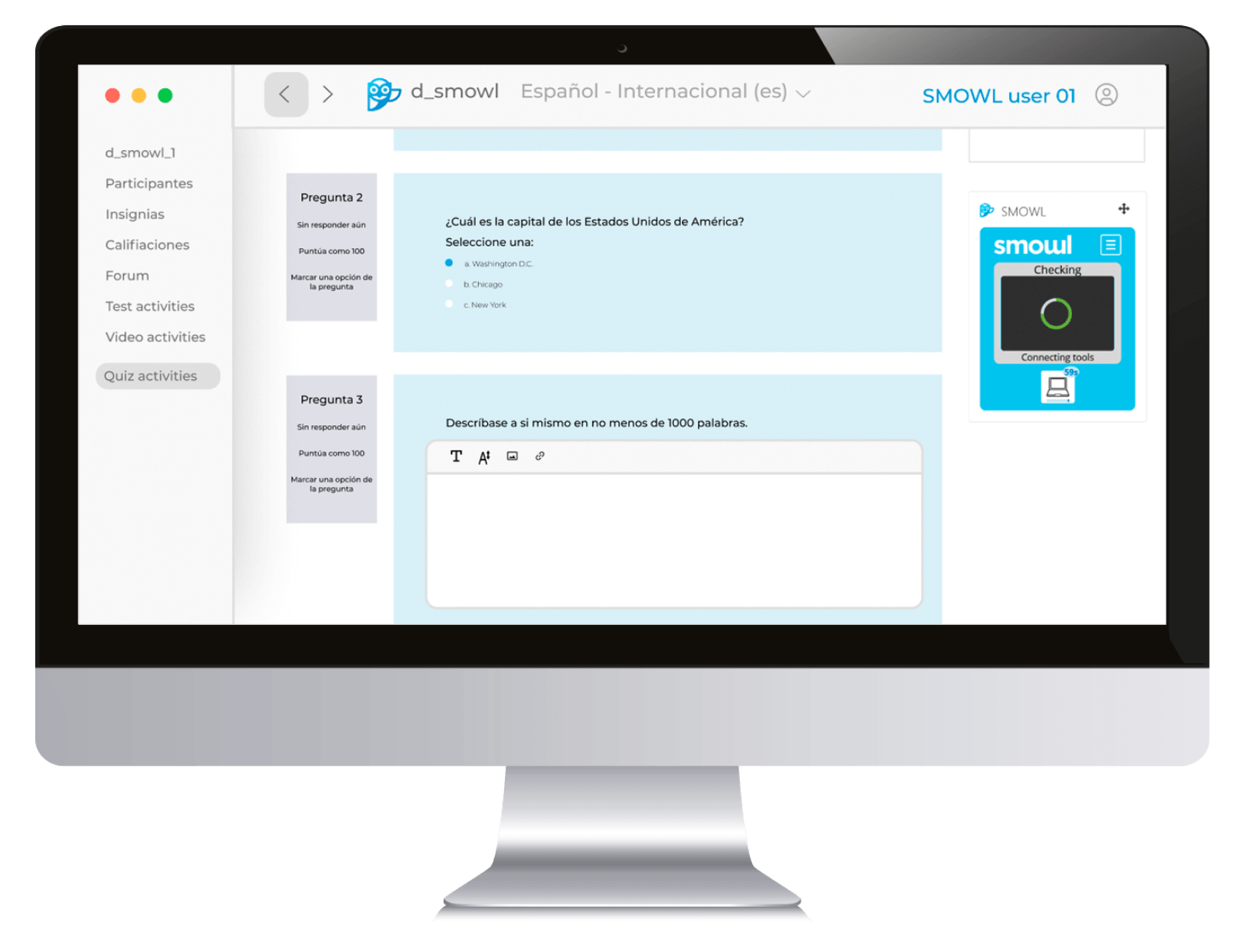
In an increasingly digital educational and corporate environment, ensuring the integrity of online exams has become a priority. SMOWL CM is the computer monitoring tool (Computer Monitoring) developed by SMOWL, designed to support institutions, companies, and students in digital assessment in a transparent, secure, and uninterrupted way.
Unlike other systems, SMOWL CM is a non-blocking solution: it monitors and records the user’s device activity during an exam but does not prevent use of the device or interrupt the assessment process. This makes it a flexible option that respects the user experience while maintaining the quality and compliance standards defined by each institution.
The SMOWL CM download is performed from your learning platform (Moodle, Blackboard, Canvas, D2L, etc.).
What is SMOWL CM?
SMOWL CM is software designed to monitor the activity of your computer while you take an online exam. Its primary purpose is to collect digital evidence that can verify compliance with the rules established by your institution or company.
During the assessment, the system records aspects such as open applications, web navigation, and command usage, always within the limits defined by the organization.
Thanks to this collection, academic or HR managers can detect unpermitted behavior, ensure fairness in assessment, and maintain confidence in the training or selection process.
Do you want to stay on top of the latest trends in eLearning, EdTech, and Human Resources?
Fill out the form to receive our weekly newsletter with industry insights from our experts.
How does SMOWL CM work?
SMOWL CM’s operation is simple and automated. Once installed, it activates automatically when you access the monitored exam page within your learning platform (such as Moodle, Blackboard, Canvas, or D2L).
During the session, the software collects evidence of the device’s state and processes it according to the filters configured by your institution.
Most importantly: SMOWL CM does not block your computer or prevent actions. It only records information to ensure transparency and displays alerts when it detects behavior that may not comply with the established rules.
What does SMOWL CM monitor?
SMOWL CM focuses on collecting objective data related to computer use. These are the main elements it monitors and that appear in the monitoring reports:
- Open applications: detects programs running in the foreground or background without interaction.
- Application usage: records each window change and captures an associated screenshot.
- Peripherals: shows devices connected to the computer. It is recommended to use a single screen to avoid issues.
- Virtual machines: detects if a VM is being used during the activity.
- Commands: monitors the use of shortcuts such as copy/paste or taking screenshots.
- Web navigation: collects information about visited sites, accompanied by a screenshot for verification.
All this information is turned into a clear, structured report accessible only to the institution’s designated staff, who will evaluate each case using human judgment.

Checklist before starting your exam
Before beginning an assessment with SMOWL CM, it’s recommended to follow this checklist to avoid technical issues:
- Uninstall previous versions of the program (for example, 4.0.0) if installed.
- Verify OS compatibility:
- Windows 10 or later
- macOS Big Sur or later
- Linux (Ubuntu 20/22, Mint 21)
- Use a compatible browser: Chrome or Edge (both Chromium-based).
- Make sure you have installation permissions. This is key if you use a device managed by your company or university.
- Close non-permitted applications before starting (such as Spotify, Teams, or AnyDesk).
- Grant the necessary permissions to SMOWL CM when the browser requests them (choose “Always allow”).
Following these steps ensures the software works correctly and that the exam proceeds without interruptions.
Download and installation of SMOWL CM
SMOWL CM installation is quick and is done directly from your learning platform, within the course or the SMOWL block.
- Moodle / OpenLMS: look for the SMOWL block inside your course.
- Blackboard / Canvas / D2L: access the download button inside the SMOWL tool.
If you can’t find the link or have doubts about starting the download, contact your institution or exam administrator. They can provide the correct link and specific instructions.

Remember: SMOWL CM does not evaluate or grade
One of SMOWL CM’s core principles is that it does not evaluate or grade the user. Its function is only to collect evidence of behavior.
Decisions about whether an exam is valid or whether there has been an infraction always rest with people: teachers, supervisors, or HR managers.
The final decision is always human
SMOWL CM’s value lies in providing objective information so that responsible staff can:
- Analyze the context: determine whether detected alerts have a valid justification.
- Validate the evidence: distinguish between suspicious behavior and permitted actions.
- Make fair decisions: apply institutional policies in a balanced and transparent way.
In this way, SMOWL CM strengthens confidence in digital assessment processes without replacing human judgment.
Frequently asked questions about SMOWL CM
Does SMOWL CM block my computer?
No. It is a non-blocking tool: it records evidence but does not interfere with your activity.
What operating systems are supported?
Windows 10+, macOS Big Sur+, and Linux (Ubuntu 20/22, Mint 21).
Which browser should I use?
Chrome or Microsoft Edge (both Chromium-based).
How do I download SMOWL CM?
From the SMOWL block or tool within your course on the learning platform.
What exactly does it monitor?
Applications, web navigation, peripherals, periodic screenshots, command usage, and virtual machine detection.
Can I use two monitors?
Not recommended. Use a single screen to avoid issues.
What is considered an issue?
Any behavior that does not comply with the rules defined by your institution. Cases are always validated by responsible staff.
What do I do if SMOWL CM is not detected?
Refresh the page, check browser permissions, and make sure the application shows the End button. If the problem persists, contact your institution.
How do I close SMOWL CM at the end of the exam?
Click End in the application and confirm once you have submitted your exam.
I received an alert for background programs; what should I do?
Close applications that start automatically (such as AnyDesk, Teams, or Spotify) and consult your institution. Remember: SMOWL does not disqualify.
8 interesting facts about proctoring
Fill out the form and download the guide where we cover everything about online monitoring and help you choose the best software.
Help and support
If you need further assistance, the SMOWL Help Center contains detailed guides, step-by-step solutions, and updates on SMOWL CM functionality.
And remember: SMOWL CM is designed to offer transparency, trust, and fairness in digital exams, helping institutions and companies maintain assessment integrity without compromising the user experience.
With this quick guide, you now have everything you need to prepare for, install, and use SMOWL CM with full confidence.