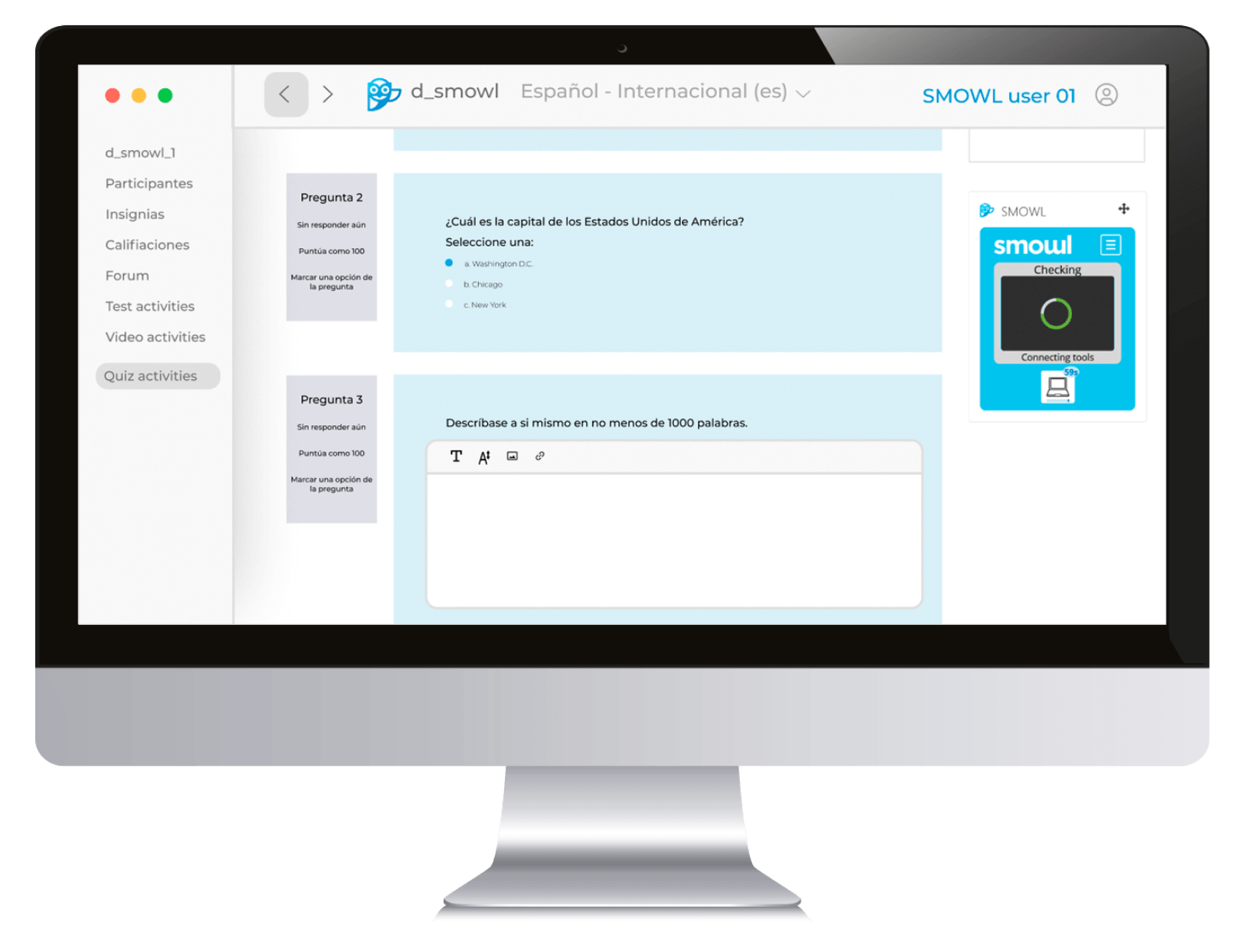
In the era of digital education, online exam proctoring is essential to ensure academic integrity. SMOWL is one of the most popular monitoring tools in this field.
This software offers monitoring options through the camera, microphone, and computer supervision to ensure that the exam is conducted under secure and supervised conditions.
In this guide, we will explain step by step how to download SMOWL, the technical requirements needed, and how to use the tool during your exams.
What is SMOWL CM?
SMOWL CM is a monitoring software that tracks a user’s activity on the computer during an online exam.
This means that SMOWL not only monitors the camera but also checks which programs are open and whether the student is engaging in unauthorized activities, such as browsing the Internet or opening prohibited applications.
It’s important to note that SMOWL CM does not automatically block the use of other applications; instead, it sends activity reports that can be reviewed by the evaluators. This way, SMOWL’s monitoring aligns with the requirements of the educational institution.
How to download SMOWL CM
If you’re new to SMOWL CM, here are some important things you should consider before proceeding with the installation:
Check with your institution
Institutions set their own proctoring rules, including whether you can use dual monitors or open other programs. It’s essential to know these limits before starting an exam.
Select the correct version
Make sure you’re downloading the correct version and check with your institution if you have any questions.
SMOWL CM isn’t downloaded directly from a website but through your institution’s learning platform (LMS). Depending on the system your course uses (Moodle, OpenLMS, Blackboard, Canvas, D2L, etc.), the SMOWL CM download link will be located in different places.
Download link location in Learning Management Systems (LMS):
- Moodle and OpenLMS: Look for a tools section within your course that contains the SMOWL CM download link. If you can’t find it, contact your institution’s support team.
- Blackboard, Canvas, and D2L: Usually, in these platforms, you’ll find a specific download button for SMOWL within the monitoring section.
- Other LMS: SMOWL is also integrated into many LMS platforms, so the software download link may be located in a similar spot as in the platforms mentioned. If you can’t find it, be sure to contact your institution’s support team.
To find it, look for a computer icon 💻 in the monitoring section of your course, which will give you access to the download link.
System requirements for SMOWL CM
It’s crucial that your device meets the technical requirements for optimal installation and performance of SMOWL CM. Below are the compatible system requirements:
- Windows: Version 10 or higher
- MacOS: 11 (Big Sur or higher)
- Linux: Ubuntu 20, Ubuntu 22, and Mint 21
- Internet access: Make sure you’re connected to a stable network and that there are no restrictions blocking access to SMOWL at your institution or company.
If you’re using an institutional device, confirm that you have the necessary permissions to install software.
Recommended browsers for using SMOWL CM
For SMOWL CM to work properly during an exam, it’s important to use a compatible browser. Chromium-based browsers like Google Chrome, Microsoft Edge, and Opera are highly recommended. However, Safari is not supported, so it’s best to avoid using it.

How to download Browser Lock
In addition to SMOWL CM, Smowltech offers extra tools to ensure exam integrity, such as Browser Lock. Below, we explain each of these tools in detail and how to install them.
What is Browser Lock?
Browser Lock is a Lockdown Browser feature that enforces full-screen mode during the exam, preventing you from navigating outside the test window. This tool blocks any attempts to access other pages or applications and runs through the SMOWL browser extension.
Depending on your institution’s requirements, Browser Lock may or may not be enabled when using the extension.
Are Browser Lock and SMOWL EXTENSION the same?
No. SMOWL EXTENSION is a Chrome extension, while Browser Lock is a functionality. The SMOWL EXTENSION enables the Browser Lock functionality to work in your browser.
What is SMOWL EXTENSION?
SMOWL EXTENSION allows the Browser Lock functionality to work properly within your institution’s learning platform.
This extension is installed directly in the browser you use for the exam and must be enabled for SMOWL to function properly during the test.
How to download and install SMOWL EXTENSION
Downloading and installing the SMOWL browser extension is very simple. Below, we explain the process and some technical requirements you should keep in mind.
Download the extension
Your institution will provide you with a direct link to add the extension in Google Chrome before starting the activity. If you haven’t received the link, you can download the extension here.
Once you access the link, simply click Add to Chrome to complete the download process.
Installation and management
After downloading it, make sure the SMOWL extension is enabled in your browser. You can manage the extension from the Chrome menu by following these steps:
- Click the three-dot icon in the top right corner of Chrome.
- Select Extensions, then Manage extensions.
- Make sure the SMOWL extension is enabled.
Once you’ve completed all SMOWL activities, you have the option to remove the extension by clicking Remove.
Browser requirements for Browser Lock and SMOWL EXTENSION
The SMOWL extension and Browser Lock work on Chromium-based browsers. Compatible browsers include:
- Google Chrome (recommended)
- Microsoft Edge
- Opera
- Brave
- Vivaldi
It is important to note that the SMOWL extension is not compatible with Safari or Mozilla Firefox.
Using SMOWL CM, Browser Lock, and SMOWL EXTENSION, Smowltech ensures strict and secure monitoring, upholding the integrity and transparency of online exams.
8 interesting facts about proctoring
Fill out the form and download the guide where we cover everything about online monitoring and help you choose the best software.