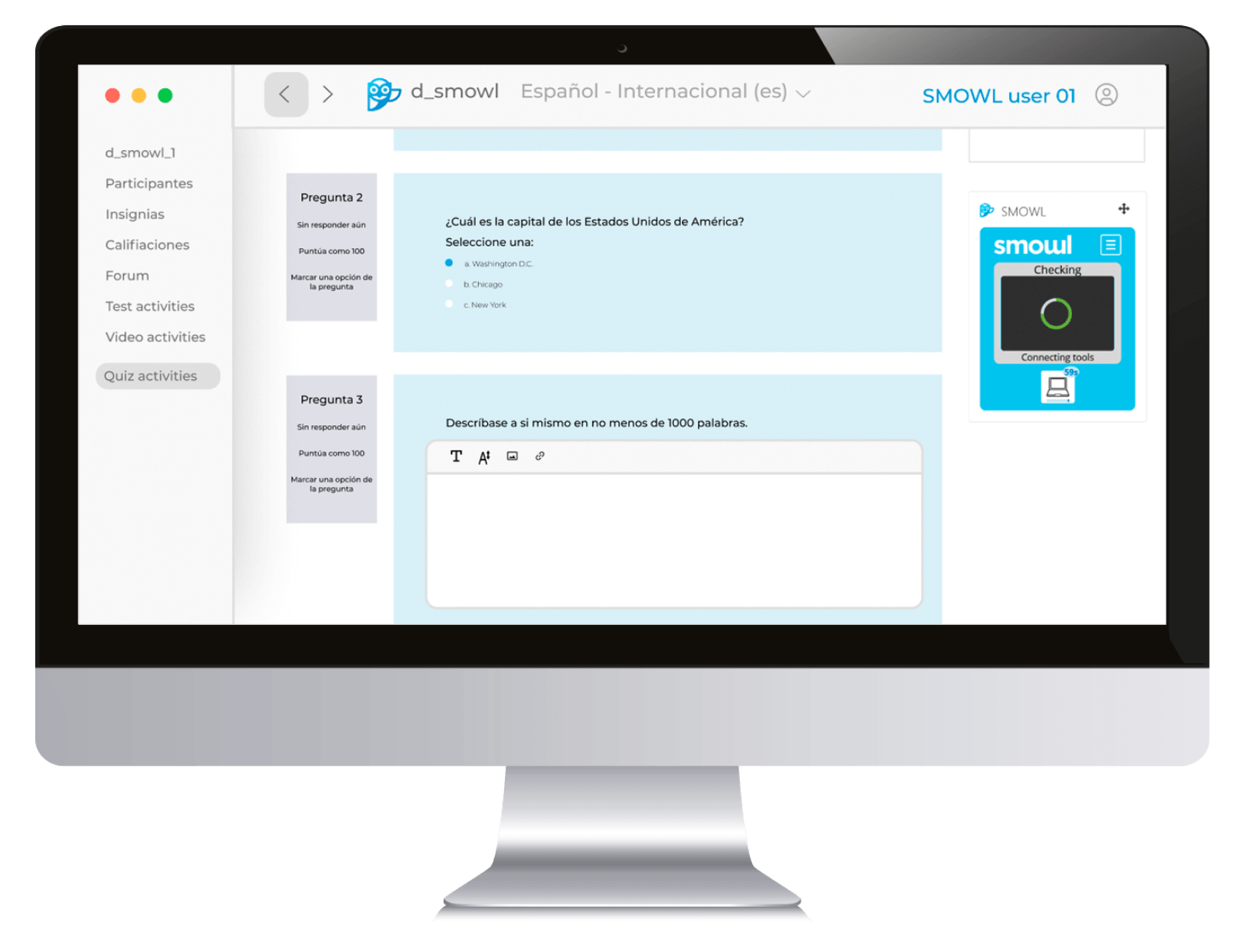
In the digital education ecosystem, corporate training, and online certifications, there is a term that constantly echoes through student forums, educational innovation departments, and assessment manuals: “SMOWL Lock.”
If you have made it to this page, chances are you have been told you need to install it to take an exam, that your institution has integrated it into its platform, or you are simply researching how to improve the security of your virtual tests. However, there is a fundamental detail we need to clarify right from the start: SMOWL Lock does not exist as a standalone product or software.
Yes, you read that right. There is no official installer called SMOWL Lock, nor is there an app you can download under that exact name.
So, what is everyone referring to when they talk about it? Why is the term so widespread? To understand what users actually call “SMOWL Lock,” we need to look under the hood of Smowltech’s proctoring technology and break down the two real concepts that bring it to life: Browser Lock and SMOWL EXTENSION.
The origin of the confusion: why “SMOWL Lock” doesn’t exist
When educational institutions and companies began moving their exams and assessments to the digital environment, they faced a massive challenge: ensuring academic integrity. In an in-person exam, a proctor can see if a student opens a book or checks their notes. In a virtual environment, the “book” is the entire Internet, and the temptation to open a new tab to look up an answer is constant.
To solve this problem, Smowltech developed advanced technological solutions. Early on, users and administrators colloquially began referring to any Smowltech blocking tool as “SMOWL Lock.” The term stuck because of its simplicity: it combined the company name with the English word lock.
Over time, this term became a bit of a corporate urban legend. Students ask, “Where do I download SMOWL Lock?”, and instructors state in their syllabi, “Using SMOWL Lock is mandatory for this exam.”
But the technical reality is different. What actually exists are two separate elements working as a team: a feature and an access tool.
- The feature: It is called Browser Lock.
- The access tool: It is called SMOWL EXTENSION.
Below, we will take an in-depth look at each of these elements to understand exactly how they work and why they have revolutionized security in digital assessments.

What does exist (1): the Browser Lock feature
To understand the concept of Browser Lock, we first need to understand what a locked browser is.
A conventional web browser (like Google Chrome, Microsoft Edge, or Mozilla Firefox) is designed for freedom. It allows you to open dozens of tabs, browse multiple websites at once, copy text from one site to paste into another, and use all kinds of extensions. However, for a digital exam, this freedom is the enemy of integrity.
Browser Lock is the Smowltech feature that temporarily transforms a standard browser into a secure, restricted environment for taking an assessment. It is not a program that runs permanently, but rather a security configuration that is activated exclusively for the duration of the test.
What exactly does Browser Lock block?
When an exam has the Browser Lock feature enabled, the system drastically restricts the actions a user can take. The main restrictions include:
- Opening new tabs or windows: Users cannot open another tab to search for information on Google or check notes in the cloud.
- Accessing external websites: Browsing is strictly limited to the exam page within the Virtual Campus or LMS (Moodle, Canvas, Blackboard, etc.).
- Copying and pasting content: Clipboard functions are disabled. Users cannot copy exam questions to look them up elsewhere, nor can they paste pre-written or AI-generated answers.
- Keyboard shortcuts and hotkeys: Suspicious combinations like Alt + Tab (to switch applications), Ctrl + C / Ctrl + V, or shortcuts that bypass environment security are blocked.
- Use of other extensions: Users are prevented from interacting with assistive tools like automatic translators, advanced spellcheckers, or Artificial Intelligence extensions that could solve the exam for them.
The alert and dismissal system
Browser Lock is not just a passive barrier; it is an active and dynamic system. During the test, if a user attempts an unauthorized action (for example, trying to force open a new window), the system responds as follows:
- Instant detection: Browser Lock identifies the inappropriate behavior in real time.
- Alert issue: A warning pops up on the screen, informing the user that the action is not allowed and that they must focus on the exam.
- Incident logging: The action is recorded as browsing evidence within the proctoring report, which evaluators will review later.
- Automatic dismissal (optional): Depending on the institution’s settings, if the user exceeds a maximum number of allowed alerts (e.g., three violation attempts), the system automatically ejects them from the activity to protect the test’s integrity. Once out, the exam state is saved so the student’s progress up to that point is not lost.
What does exist (2): SMOWL EXTENSION
Now that we know Browser Lock is the blocking feature, the logical question is: How does that feature get onto the user’s computer? This is where the actual tool developed by Smowltech comes in: SMOWL EXTENSION.
SMOWL EXTENSION is an official extension for Chromium-based browsers (such as Google Chrome and Microsoft Edge) that serves as the delivery vehicle for the Browser Lock feature.
Instead of forcing students to download heavy software, install a completely new browser, or modify deep settings in their operating systems, Smowltech opted for a much more agile, lightweight, and accessible solution.
By installing an extension from the Chrome Web Store, users keep their usual browser but temporarily grant it the necessary permissions so Smowltech can apply Browser Lock restrictions when required.

Main features of SMOWL EXTENSION
- One-click installation: Because it is hosted on the official Chrome Web Store, installing it is as simple as clicking a button. It requires no advanced technical skills from the user.
- Automatic updates: Just like any other Chrome extension, it updates automatically in the background. This ensures the student always has the latest version, bug-free, and with the most up-to-date security measures.
- Broad compatibility: It works on the vast majority of modern operating systems (Windows, macOS, Linux, ChromeOS) as long as a compatible Chromium-based browser is used.
- Web environment control: Unlike other Smowltech tools like SMOWL CM (Computer Monitoring), which monitor overall activity across the entire computer, SMOWL EXTENSION focuses exclusively on the browser environment.
The perfect tandem: how the extension and the lock work together
To clearly visualize the difference between these concepts, we can use a simple analogy:
Imagine you are entering a high-security facility.
- Browser Lock is the security protocol that bans mobile phones, cameras, or backpacks.
- SMOWL EXTENSION is the entrance door that lets you in and enforces that protocol. Without the door (the extension), the protocol (the lock) cannot be executed.
When an educational institution decides to proctor a digital exam with Smowltech and opts for maximum browsing security, the process follows a very clear workflow:
Step 1: Configuration by the institution
Administrators or instructors set up the test on their learning management system (LMS). They activate SMOWL proctoring and select the Browser Lock option. In doing so, they define the exam’s tolerance level: how many alerts will be allowed before a dismissal and which exact elements will be restricted.
Step 2: Extension installation by the user
Before the exam, the student receives instructions from their institution. These instructions direct them to install SMOWL EXTENSION from the Chrome Web Store. The student downloads the extension to their regular browser (e.g., Google Chrome) and ensures it is enabled.
Do you want to stay on top of the latest trends in eLearning, EdTech, and Human Resources?
Fill out the form to receive our weekly newsletter with industry insights from our experts.
Step 3: Browser Lock activation during the exam
On exam day, the student accesses their test through the Virtual Campus. At that exact moment, the platform detects the presence of SMOWL EXTENSION. The extension communicates with Smowltech’s servers and activates the Browser Lock feature. From then on, the browser is restricted, and the secure environment is applied.
Step 4: Test completion and deactivation
Once the student clicks “Submit exam” or “Finish,” the Browser Lock feature is immediately and automatically deactivated. The browser returns to its normal behavior. The user regains full freedom to open tabs, browse the Internet, and use standard features.
If they wish, students can even uninstall the extension until their next exam, though leaving it installed is usually the most convenient option since it remains completely inactive when no tests are underway.
Comparison table: SMOWL EXTENSION vs. Browser Lock
To clear up any remaining doubts about what each component is, let’s look at this visual summary:
| Feature | SMOWL EXTENSION | Browser Lock |
| What is it? | A tool (browser extension software). | A feature (a set of browsing restrictions). |
| Where is it found? | In the Chrome Web Store. | Integrated within SMOWL monitoring plans. |
| How is it obtained? | The user downloads and installs it on their Chromium browser. | The educational institution activates it when configuring the test. |
| What is its function? | To serve as the channel to deploy the lock and integrate SMOWL with the LMS. | To prevent the user from browsing, copying, pasting, or using keyboard shortcuts. |
| When does it act? | It is installed in the browser but only activates during the exam. | It runs exclusively from the start to the end of the test. |
Benefits of this model vs. dedicated Lockdown Browsers
Historically, many proctoring solutions required users to download what is known as a Lockdown Browser. This is a standalone program (an executable .exe or .dmg file) that acts as its own closed browser.
However, Smowltech’s approach—combining SMOWL EXTENSION with the Browser Lock feature—offers substantial advantages for both institutions and end users:
1. Less technical friction for the user
Downloading and installing an executable program on a personal computer can be a complex and frustrating process. Sometimes, antivirus software blocks the download, administrator privileges are required that the user does not have (for instance, on work or shared computers), or compatibility issues arise with the operating system.
By using a Chrome extension, the installation process takes just a few seconds, requires no system administrator permissions, and the rate of technical incidents drops drastically.
2. Lighter weight and higher performance
A dedicated browser consumes a lot of RAM and CPU resources, which can slow down older computers or devices with basic specs. Conversely, SMOWL EXTENSION leverages the already optimized architecture of Google Chrome or Microsoft Edge. This means the exam runs smoothly without draining unnecessary resources from the student’s computer.
3. Ease of updates
If a dedicated browser requires a security update, the student must download a new installer and go through the installation process all over again. In contrast, browser extensions update completely seamlessly and automatically through the Chrome Web Store. The student always shows up to the exam with the most optimal version of the tool.
4. Institutional flexibility
Instructors do not always need the same level of security for every test. For a weekly review quiz, a strict browsing lock might not be necessary. However, for a final certification exam, it absolutely is.
Smowltech’s tandem approach allows the Browser Lock feature to be turned on or off based on the needs of each assessment, while always using the same extension (SMOWL EXTENSION) as the foundation.
Privacy and security: demystifying browser control
A recurring topic in conversations about proctoring and locking tools is privacy. It is completely normal for students to wonder if installing a tool like SMOWL EXTENSION compromises their personal information or allows the institution to spy on their daily activity.
On this front, Smowltech maintains a policy of absolute transparency and respect for user data privacy:
- Time-limited access: SMOWL EXTENSION only monitors user browsing when the user is actively accessing an exam that has proctoring configured. Outside of exam hours, the extension remains completely inactive and does not record any information or browsing history.
- No access to local files: Unlike other programs that scan the computer’s hard drive, SMOWL EXTENSION operates exclusively within the web browser environment. It cannot access your photos, personal documents, saved passwords, or operating system files.
- Strict regulatory compliance: All Smowltech tools are designed under the framework of the European Union’s General Data Protection Regulation (GDPR). This ensures that the processing of data collected during the test is carried out with maximum legal and technical security, and always with the user’s prior consent.
- Simple uninstall option: Once the exam period is over, if the student feels more comfortable doing so, they can remove the extension from their browser in just two clicks (by right-clicking the extension icon and selecting “Remove from Chrome”).

Quick guide for users: how to install and manage SMOWL EXTENSION
To ensure your experience with the Smowltech extension is seamless and that the Browser Lock feature activates correctly on your exam day, here are the essential steps to follow:
1. Download the extension
Go to the Chrome Web Store and search for SMOWL EXTENSION (make sure the developer is Smowltech). Click the “Add to Chrome” button and confirm the installation in the pop-up window.
2. Verify it is enabled
Once installed, click the puzzle piece icon (Extensions) in the top right corner of your Chrome or Edge browser. Select “Manage extensions” and check that the toggle switch for SMOWL EXTENSION is in the turned-on position.
3. Allow its use in incognito mode (recommended)
To avoid conflicts with personal extensions or saved cookies, many institutions recommend taking exams in an incognito window. To make the extension work in this mode:
- Go to the SMOWL EXTENSION settings from your browser’s extension menu.
- Click on “Details.”
- Turn on the toggle that says “Allow in Incognito.”
4. Keep the extension updated
Generally, Chrome updates extensions automatically. However, if you want to manually ensure you have the latest version before an important exam, you can go to your browser’s extensions section, turn on “Developer mode” in the top right corner, and click the “Update” button.
Conclusion: let’s call things by their real name
The next time you hear a classmate, an instructor, or read the term “SMOWL Lock” in a guide, you will know exactly how to respond. You can explain with complete confidence that SMOWL Lock does not exist as such, but is rather a colloquial way of referring to an advanced security feature from Smowltech.
What actually allows for secure, distraction-free exams in the digital age is the smart combination of:
- SMOWL EXTENSION: The tool that the user installs quickly, safely, and seamlessly in their Chromium browser.
- Browser Lock: The powerful blocking feature that springs into action during the exam to ensure all students compete on a level playing field, evaluating their true knowledge without unauthorized external help.
By understanding the technology behind digital assessments, we lose our fear of the unknown, optimize our study or evaluation processes, and contribute to creating a fairer, more transparent, and secure digital educational environment for everyone.